Running OpenClaw on a tablet is possible with the right setup. With the help of Termux and a Linux environment, you can set it up and start using it right from your device.
This guide will help you set everything up step by step in a simple way, so you can run OpenClaw smoothly on your tablet.
System Requirements to Install OpenClaw on Tablet
| Requirement | Details |
|---|---|
| RAM | 6 GB minimum (8 GB+ recommended) |
| Processor | Mid to high-performance chipset |
| Operating System | Android 10 or higher |
| Dependencies | Termux, Node.js (v22+), Git |
Install OpenClaw on Tablet
1. Install Termux
Install Termux via F-Droid (not Play Store). Open Termux and run:
pkg update && pkg upgrade -y
pkg install proot-distro -y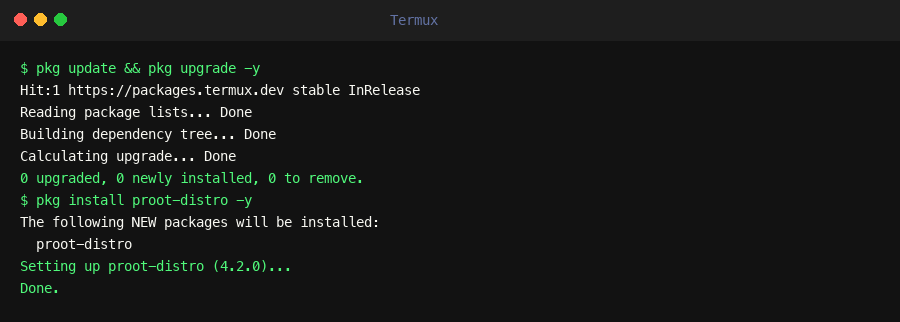
Termux — updating packages and installing proot-distro
2. Install Linux (Ubuntu)
proot-distro install ubuntu
proot-distro login ubuntu
Now you are inside a Linux environment.
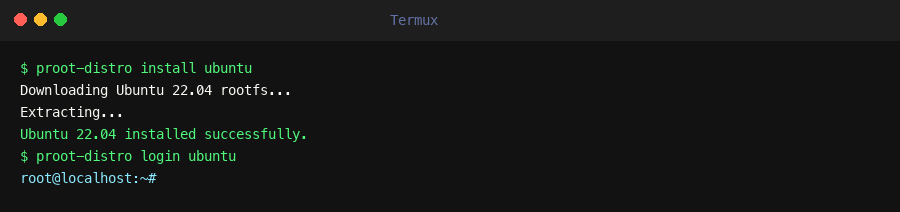
Ubuntu installed and logged in via proot-distro
3. Install System Dependencies
apt update && apt upgrade -y
apt install curl git build-essential -y
4. Install Node.js (Required for OpenClaw)
curl -fsSL https://deb.nodesource.com/setup_22.x | bash -
apt install -y nodejs
Verify the installation:
node -v
npm -v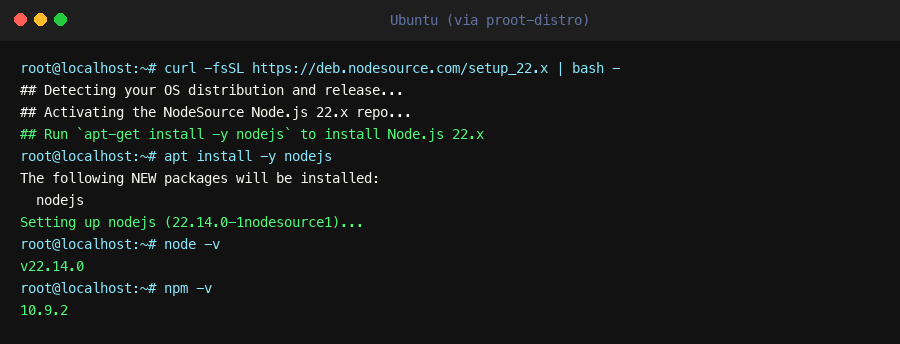
Node.js v22.14.0 installed — node -v and npm -v confirmed
5. Install OpenClaw
npm install -g openclaw@latest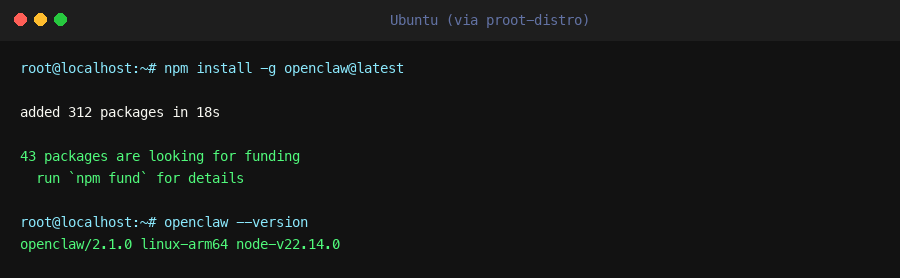
OpenClaw installed — openclaw --version confirmed
6. Configure & Run OpenClaw
openclaw onboard --install-daemon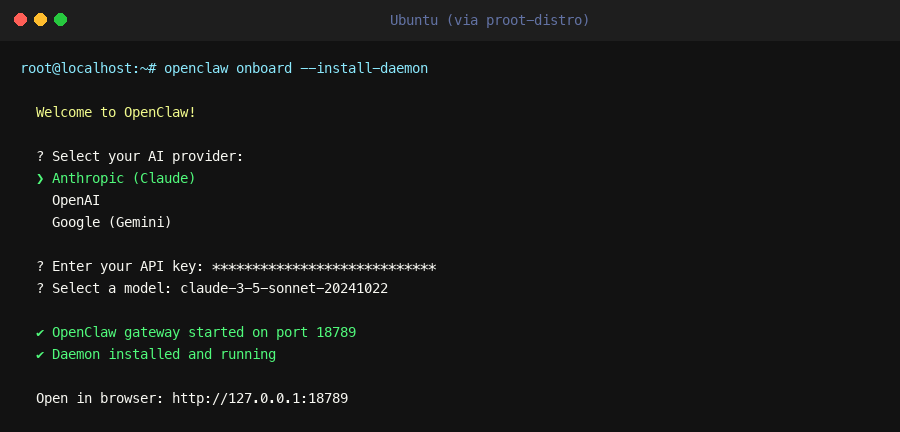
OpenClaw onboarding — select provider, enter API key, gateway starts on port 18789
Open in browser:
http://127.0.0.1:18789Once running, you can connect messaging channels like Telegram or WhatsApp directly from your dashboard.
Common Setup Issues
| Issue | Reason | Fix |
|---|---|---|
| OpenClaw not starting | Node version issue | Install Node 22+ |
| Command not found | Not inside Ubuntu | Run proot-distro login ubuntu |
| App stops automatically | Android background limits | Use wake-lock |
| Slow performance | Limited hardware | Normal on tablets |
Easiest Way to Run OpenClaw on Tablet
Instead of handling setup and fixes manually, you can run OpenClaw instantly using Ampere.sh.
- No installation required
- No Linux or terminal setup
- No dependency issues
- Runs 24/7 without interruptions
Deploy once and control everything directly from your tablet.
Frequently Asked Questions
Do I need a Linux environment to install OpenClaw on a tablet?
What is the minimum requirement to run OpenClaw on a tablet?
Is running OpenClaw on a tablet stable for long-term use?
Is a tablet good for production use of OpenClaw?
Do I need coding knowledge to set up OpenClaw on a tablet?
Can I access the OpenClaw dashboard on a tablet?
Skip the Complex Setup
Setting up with Termux and dependencies can be time-consuming and unreliable. Run OpenClaw on Ampere.sh with no installation or dependency issues.
Run on Ampere.sh →